Author-Editor Communication
This guide explains how to configure and use the communication system between authors and editors in Episciences.
Required permissions: Administrator, Editorial Secretary, or Editor-in-Chief
Overview
The author-editor communication system enables direct messaging between authors and their assigned editors through the Episciences platform. Two settings control this feature:
- Author-editor communication — Enable or disable direct messaging
- Display editor names to authors — Show real names or anonymize editors
Configuration
Accessing the settings
- Log in as an administrator
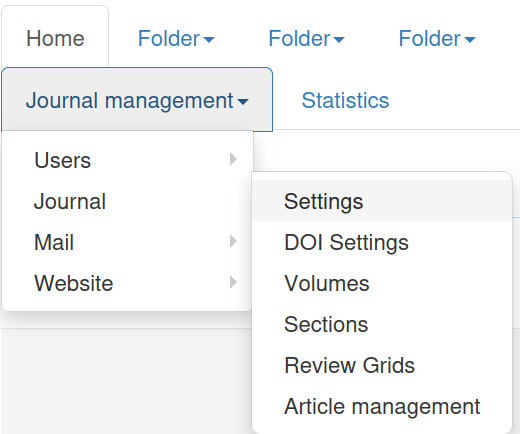
- Navigate to Manage Journal → Journal → Settings
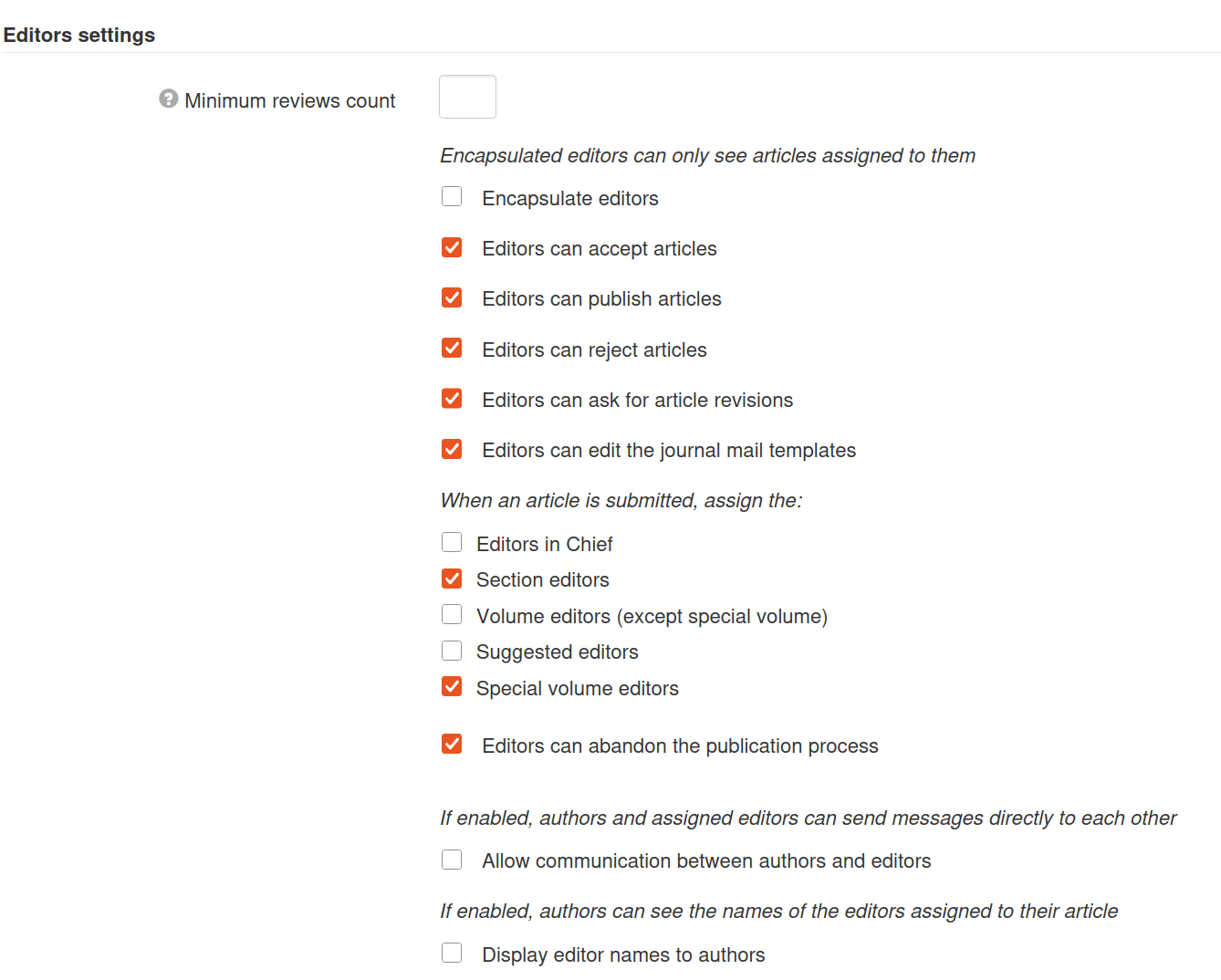
- Scroll to the Editor Settings section
- Enable or disable the desired options
- Click Save Settings
Available Settings
1. Author-editor communication
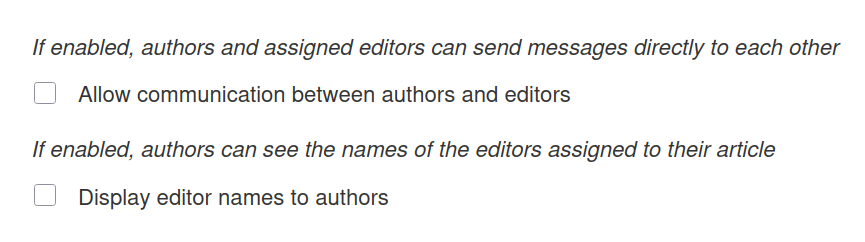
This setting controls whether authors and their assigned editors can exchange messages directly.
| Value | Description |
|---|---|
| Enabled | Authors and editors can send messages to each other |
| Disabled | Direct messaging is not available (default) |
When enabled:
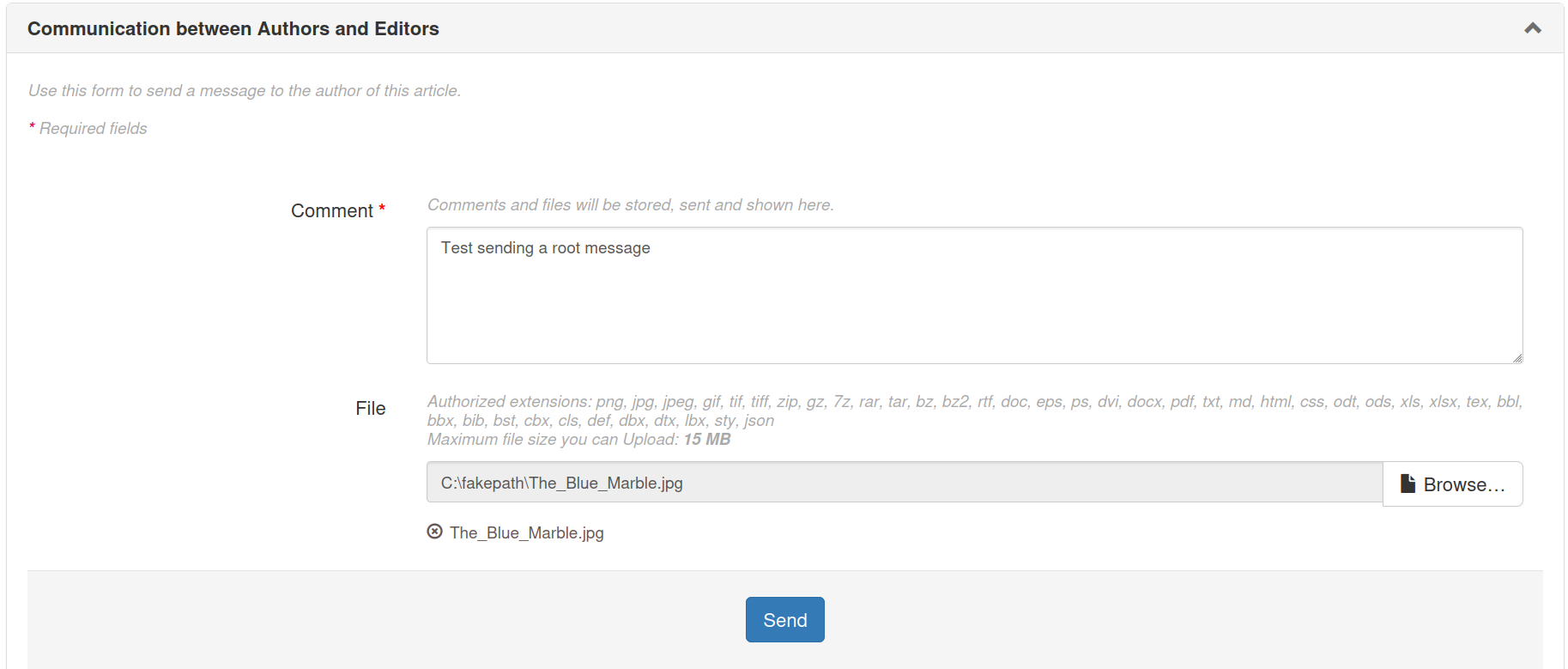
- An Author-Editor Communication block appears on the article page for both the author and the assigned editors
- Either party can initiate a conversation by sending the first message (called the root message)
- Both sides can send multiple replies within the same conversation thread
2. Display editor names to authors
This setting controls whether editor identities are visible to authors or anonymized.

| Value | Description |
|---|---|
| Enabled | Real editor names are displayed to authors |
| Disabled | Editors appear anonymously as "Editor" (default) |
Setting Combinations
The two settings can be combined to achieve different levels of privacy and transparency.
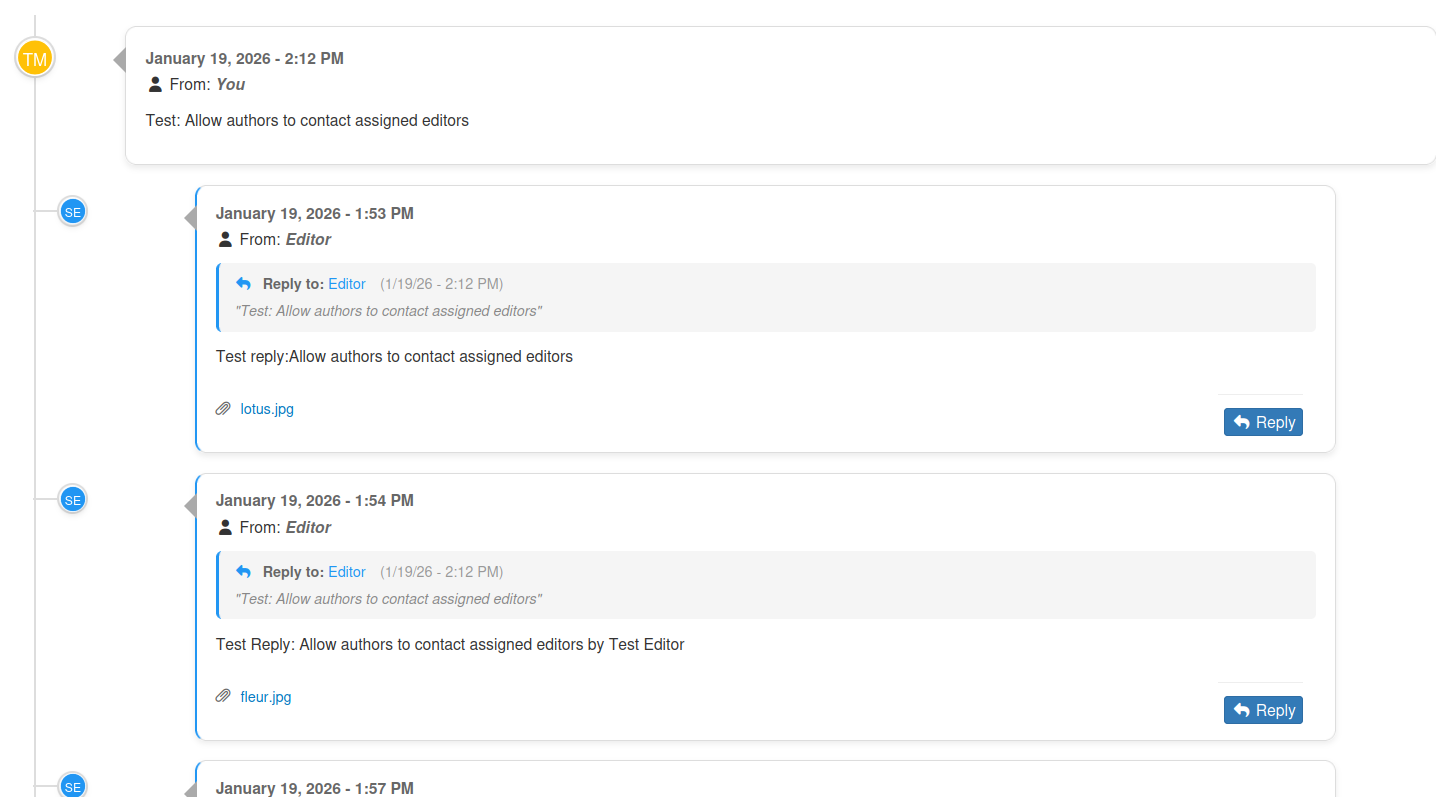
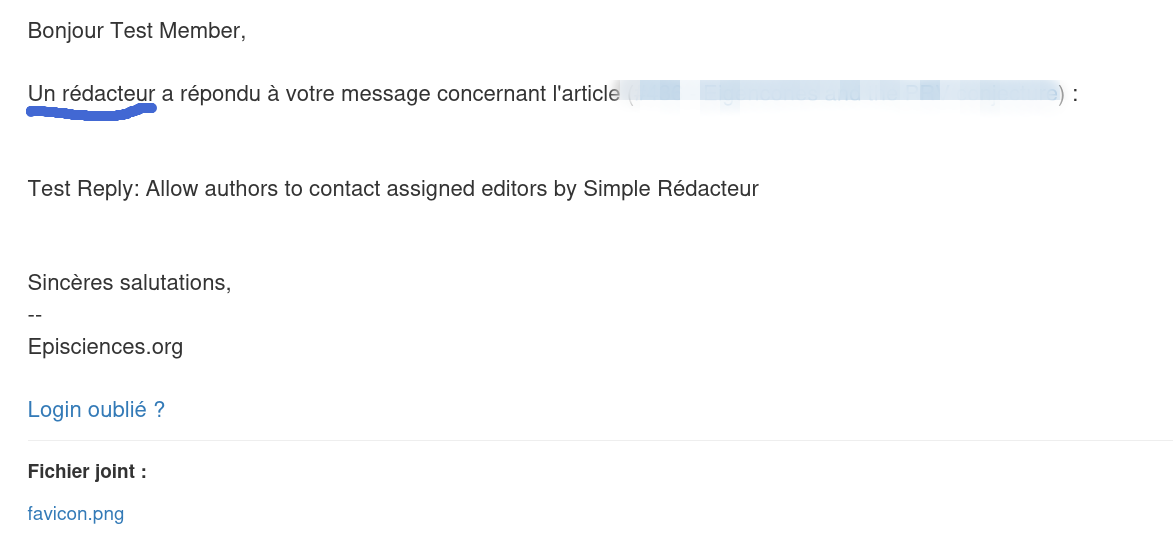
Messaging enabled + Editor names hidden
When direct messaging is enabled but editor names are hidden:
| Element | Display |
|---|---|
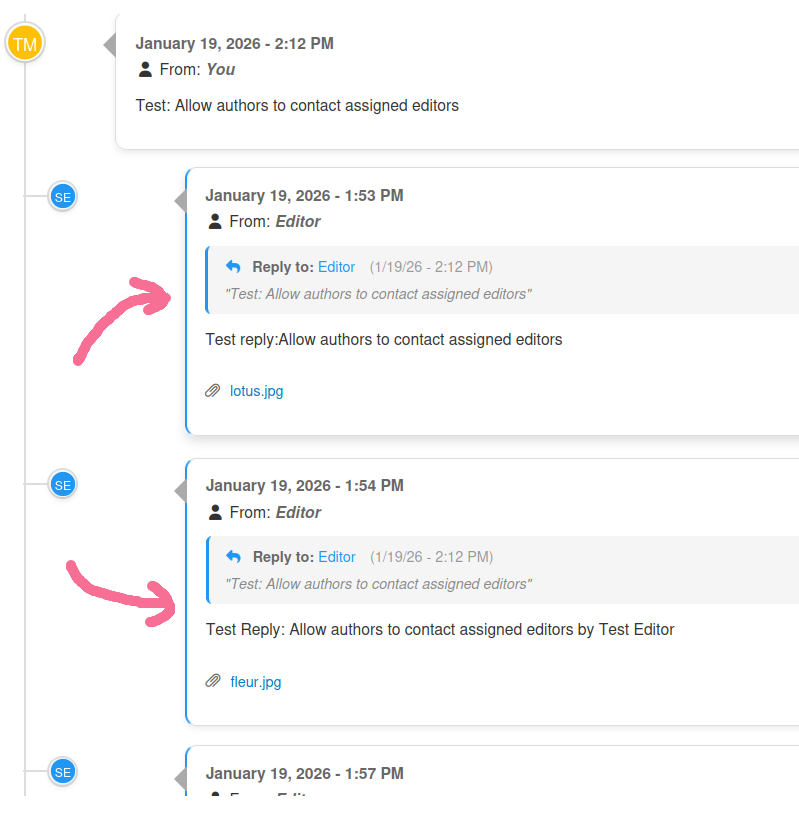
| Avatar on timeline | Initials "SE" (System Episciences) |
| Name in message | "Editor" |
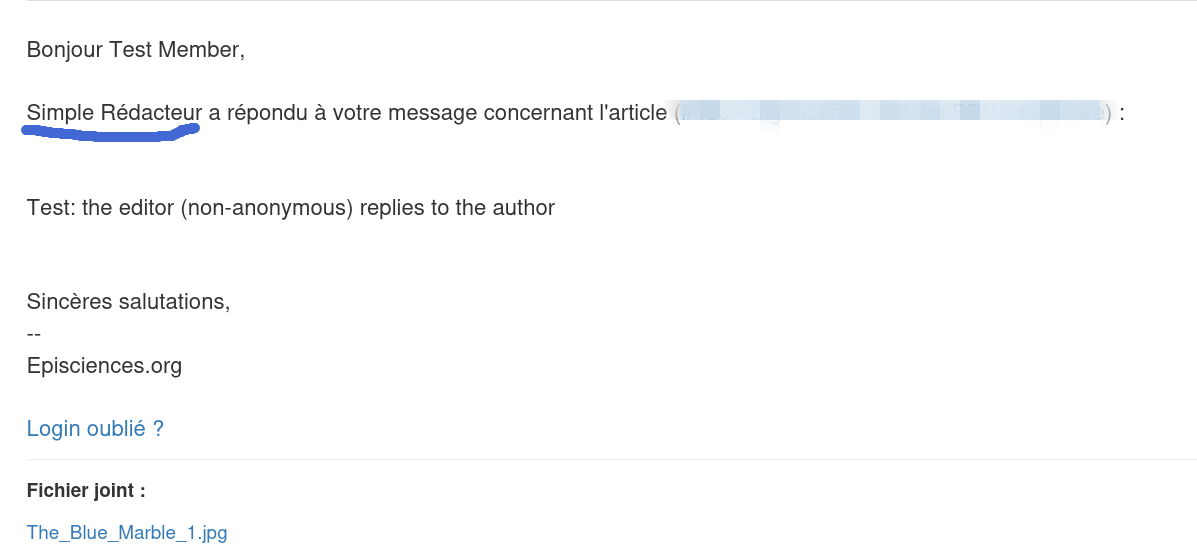
| Email notification | "Editor" |
Messaging enabled + Editor names visible
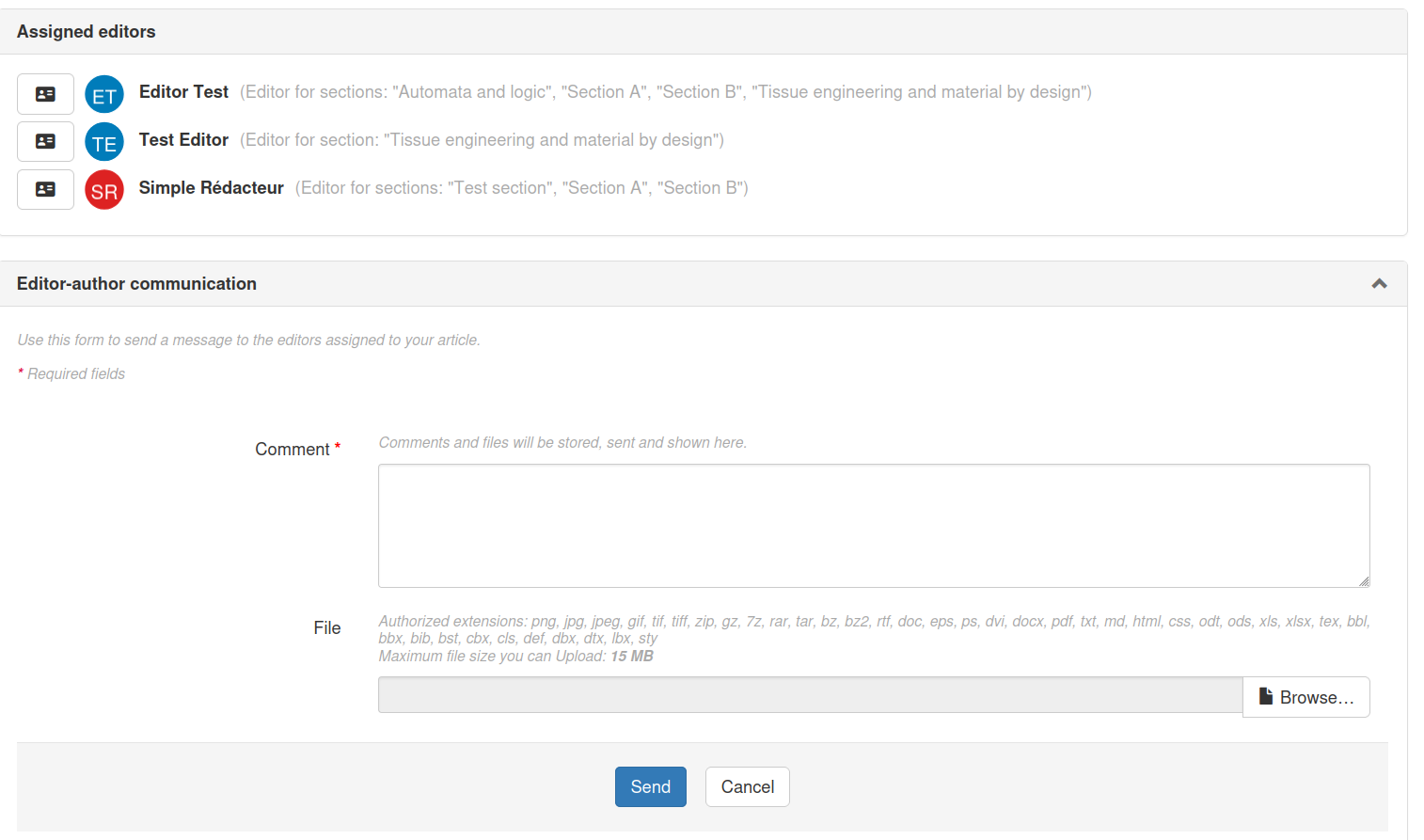
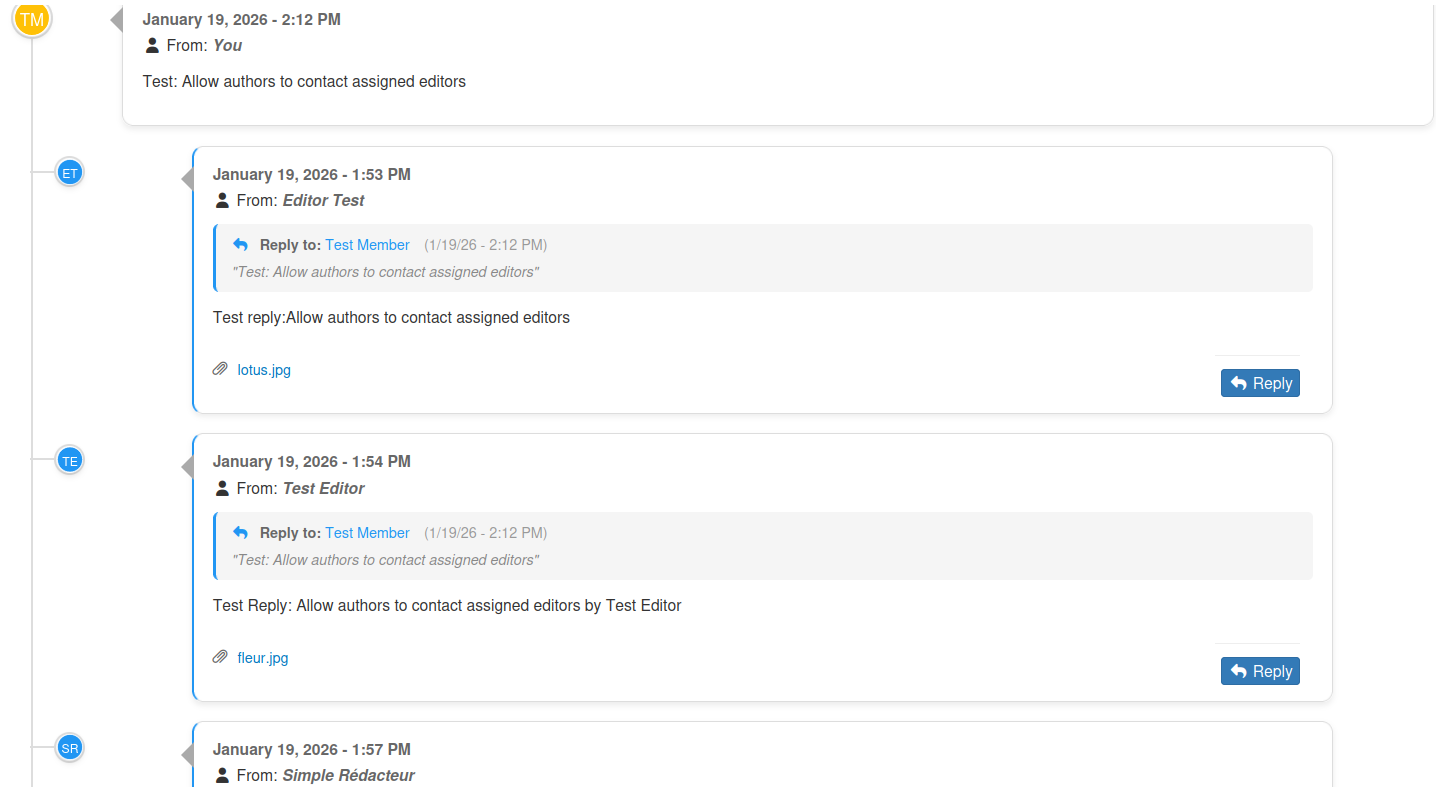
When both direct messaging and editor names are enabled:
| Element | Display |
|---|---|
| Avatar on timeline | Editor's initials |
| Name in message | Editor's full name |
| Email notification | Editor's full name |
| Editors block | List of assigned editors visible |
Conversation Features
Messages and replies
Either the author or an editor can start a conversation by sending a root message. From there:
- Both parties can send multiple replies
- All messages are displayed chronologically within the conversation thread
- Replies are visually distinguished with a blue border
- Each new message triggers an email notification to the other party
File attachments
Both authors and editors can attach files to their messages. Users can only delete their own attachments.
Visual identification
Each role has a distinct avatar color for easy identification:
| Role | Avatar color |
|---|---|
| Editor | Blue |
| Author | Yellow |

Email Notifications
Email notifications ensure all relevant parties stay informed about new messages.
When an author sends a message
The following recipients are notified:
- Assigned editors — managing the article
- Co-authors — collaborating on the article
Each recipient receives a personalized notification based on their role:
| Recipient | English message | French message |
|---|---|---|
| Assigned editors | "new message about an article you're managing" | "nouveau message concernant un article dont vous êtes responsable" |
| Co-authors | "new message about an article you co-authored" | "nouveau message concernant un article que vous avez co-signé" |
When an editor replies
The following recipients are notified:
- Main author — the primary contact for the article
- Co-authors — all other authors listed on the article
This role-based personalization helps each recipient immediately understand their relationship to the article and the context of the message.